
How to Add Google Analytics to Webflow: A Guide
Ready to grow your business?
Adding Google Analytics to Webflow is straightforward once you know which method to use. In most cases, the simplest and most accurate setup is to create a Google Analytics 4 property, copy its measurement ID, paste it into Webflow’s Google Analytics integration field, save, and republish your site. Webflow currently supports GA4 measurement IDs only, and Webflow recommends using either the built-in integration or a manual tag in custom code, but not both, to avoid duplicate tracking.
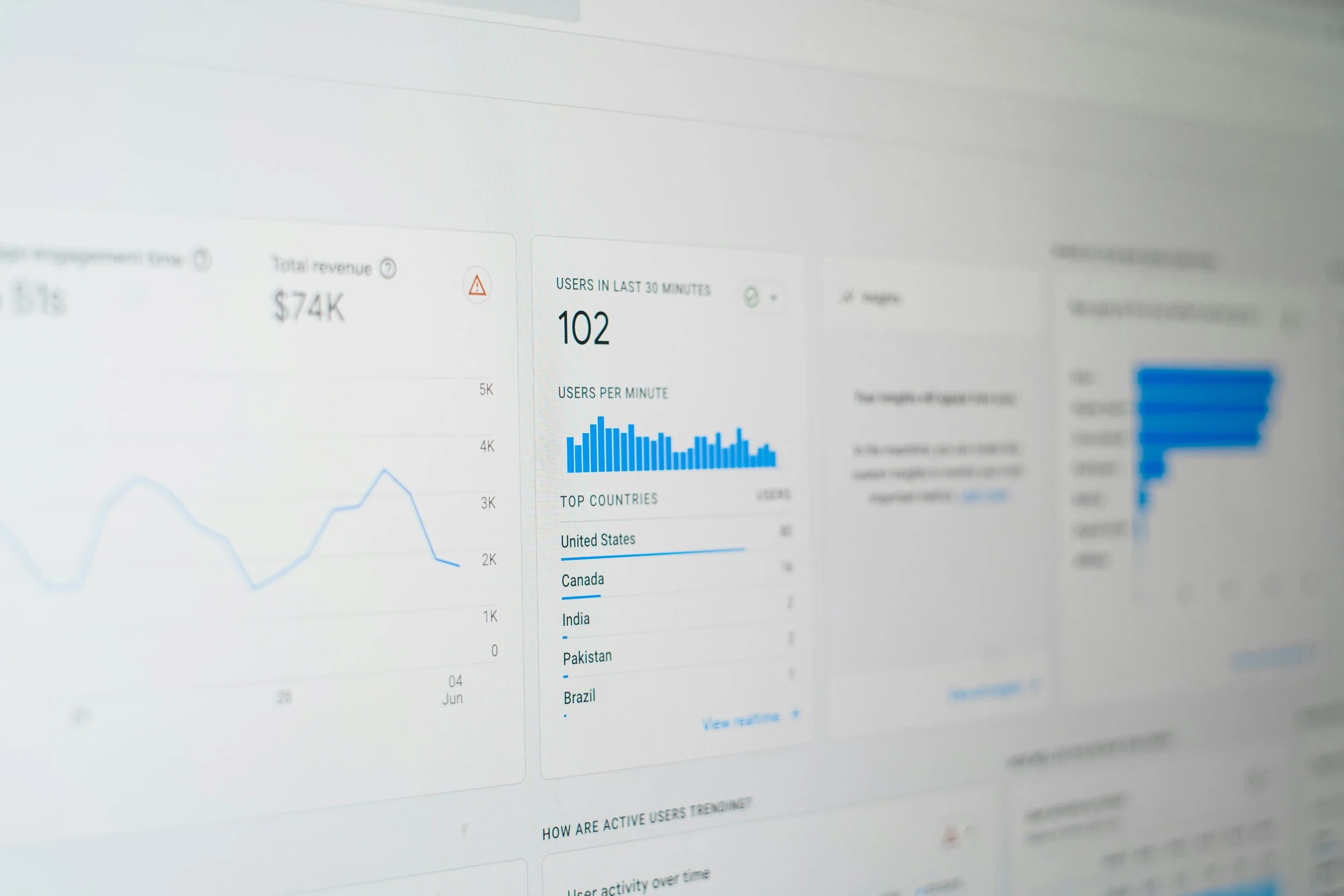
Google Analytics helps you understand how people find and use your site. Once connected, you can track traffic, pageviews, traffic sources, user behavior, and real-time visits. For a Webflow site owner, that means clearer visibility into whether your marketing, SEO, and content efforts are actually working.
Before you start
There are a few things worth knowing before setup begins. Webflow’s native Google Analytics field accepts GA4 measurement IDs that start with G-. If you still have an older Universal Analytics setup or a tracking ID that starts with UA-, that is outdated and should not be used for a new Webflow installation.
You should also decide in advance how you want to install Analytics. For most users, the best option is Webflow’s built-in integration because it is faster and cleaner. If you choose that route, do not also paste the full Google tag into your site’s custom code, since Webflow specifically warns against duplicate tracking scripts.
Step 1: Create or open your Google Analytics 4 property
Sign in to Google Analytics and create a property if you do not already have one. During setup, choose Web as your platform so you can create a web data stream for your site. Google’s setup flow for websites routes you through property creation and then into data stream setup for your domain.
If you already have a GA4 property for the website, you do not need to create a new one. You can open the existing property and go directly to its web data stream.
Step 2: Find your GA4 measurement ID
Inside Google Analytics, go to Admin, then Data Streams, and click your website’s web stream. In Webflow’s own instructions, the next step is to find and copy the measurement ID, which should start with G-. That is the value Webflow wants in its Google Analytics integration field.
This is an important detail because some users accidentally copy the wrong item. For the built-in Webflow integration, use the measurement ID, not the full JavaScript tag snippet. The ID is short and begins with G-.
Step 3: Open your Webflow site settings
In Webflow, go to the site you want to track and open Site settings. From there, open the Integrations tab and locate the Google Analytics section. Webflow’s official process is to paste your measurement ID into the designated field there.
At this point, double-check that you are editing the correct Webflow project, especially if you manage multiple sites.
Step 4: Paste the measurement ID into Webflow
Paste your G- measurement ID into the Measurement ID field in Webflow. Then click Save changes. After saving, publish the site so the tracking code is pushed live. Webflow lists publishing as part of the required setup, so saving alone is not enough. This is the core setup for most Webflow users. If all you need is standard Google Analytics tracking, this method is usually enough.
Step 5: Republish your site
Once the measurement ID is saved, republish the website. If you skip republishing, Google Analytics may not start collecting data on the live site. Webflow explicitly includes publishing as part of the integration process.
If your site is published on both a Webflow staging domain and a custom domain, make sure you understand which domain you want to evaluate inside GA4. In many cases, you will want to focus on your production domain for reporting consistency.
Step 6: Test that Google Analytics is working
After publishing, open your site in a browser and visit a few pages. Then go back to Google Analytics and open the Realtime report. Webflow recommends using Realtime to confirm that the connection is working. If the setup is correct, you should see your activity appear there.
Google notes that data collection can take up to about 30 minutes to begin in some cases, so if you do not see activity immediately, give it a little time and test again. Webflow also notes that fuller reporting and insights may take longer to populate.
When should you use manual code instead?
There is another valid method: adding the full Google tag manually in your site’s code. Google says that when you install manually, you should copy the full Google tag snippet and place it immediately after the <head> element on each page, or use your platform’s custom HTML area if that is how the builder handles head code.
In Webflow, this means using the site’s custom head code area instead of the built-in measurement ID field. However, this method is best used only if you have a specific reason to manage the tag manually. For most users, the native Webflow integration is simpler. Also, do not install Analytics in both places. Webflow specifically recommends using only one of these options to avoid duplicate tracking.
Common mistakes to avoid
A few setup mistakes show up often:
Using an old UA tracking ID instead of a GA4 measurement ID. Webflow’s current integration supports GA4 measurement IDs, not the older Universal Analytics format.
Installing Analytics twice. Do not add the measurement ID in Webflow and also paste the full Google tag in head code unless you intentionally know how to prevent duplication. Webflow recommends only one installation point.
Forgetting to republish the site. Saving settings is not the final step. The site must be republished.
Testing too quickly. Google notes that data collection can take a little time to start, so wait and use Realtime to verify properly.
What about ecommerce tracking in Webflow?
If you use Webflow Ecommerce and have Google Analytics set up, Webflow says ecommerce-specific events such as viewing a product, adding a product to cart, and purchasing can be tracked automatically. To receive those events properly in GA4, ecommerce tracking also needs to be enabled on the Google Analytics side.
That means the connection alone may not be the final step if your goal is deeper purchase and revenue reporting.
Frequently Asked Questions
1. Can I add Google Analytics to Webflow without using custom code?
Yes. Webflow has a built-in Google Analytics integration, so you can paste your GA4 measurement ID directly into Site settings → Integrations → Google Analytics, save your changes, and republish the site. Webflow also notes that you do not need a paid Site or Workspace plan just to use this integration, though you would need a paid plan to add extra custom code.
2. Does Webflow support Universal Analytics tracking IDs?
No. Webflow currently accepts Google Analytics 4 measurement IDs only, which start with G-. If you still have an older UA- tracking ID, you need to migrate to GA4 before using Webflow’s native Google Analytics integration.
3. Where do I find my GA4 measurement ID for Webflow?
You create or open your GA4 property in Google Analytics, choose the Web platform, add your website data stream, and then copy the measurement ID for that stream. This ID starts with G-, and Webflow notes that it is case sensitive.
4. Can I use both Webflow’s integration and a manual Google tag at the same time?
It is not recommended. Webflow specifically advises adding your GA4 tag in only one place, either the built-in Google Analytics integration field or your site’s head code. Using both can create duplicate tracking scripts and inaccurate data.
5. How can I check if Google Analytics is working on my Webflow site?
After saving your measurement ID and republishing your site, open your website and browse a few pages. Then go to the Realtime report in Google Analytics to confirm that your visits are being tracked. Webflow also notes that some data and insights may take longer to appear, so not every report updates instantly.
Final thoughts
The safest way to add Google Analytics to Webflow today is to use a GA4 property, copy the G- measurement ID from your web data stream, paste it into Site settings → Integrations → Google Analytics, save your changes, and republish the site. That is the setup Webflow officially supports, and it is the easiest method for most site owners.
If you run into issues, are not seeing data correctly, or want help with setup, validation, and ongoing analytics monitoring, Rex Marketing & CX can help. Contact us to get your Webflow analytics configured and working the right way.
